

8 min read • 1,755 words
Windows 11 System Requirements: Complete Guide
As technology evolves, so do the requirements for operating systems. Understanding the Windows 11 system requirements is crucial for anyone looking to upgrade or install this latest version of Microsoft’s operating system. This guide will provide you with all the essential information you need to determine if your current hardware is compatible with Windows 11. Knowing these requirements not only helps in avoiding installation issues but also ensures that you can take full advantage of the new features and enhanced performance that Windows 11 offers.
In this article, you will learn about the specific hardware prerequisites, including the need for a compatible 64-bit processor with at least 1 GHz and two or more cores, a minimum of 4 GB of RAM, and the necessity of TPM version 2.0 for improved security. Additionally, we will discuss the importance of having DirectX 12 compatible graphics for gaming and the required 64 GB of storage space for installation. Equip yourself with the knowledge to make an informed decision about upgrading to Windows 11.
Minimum System Requirements
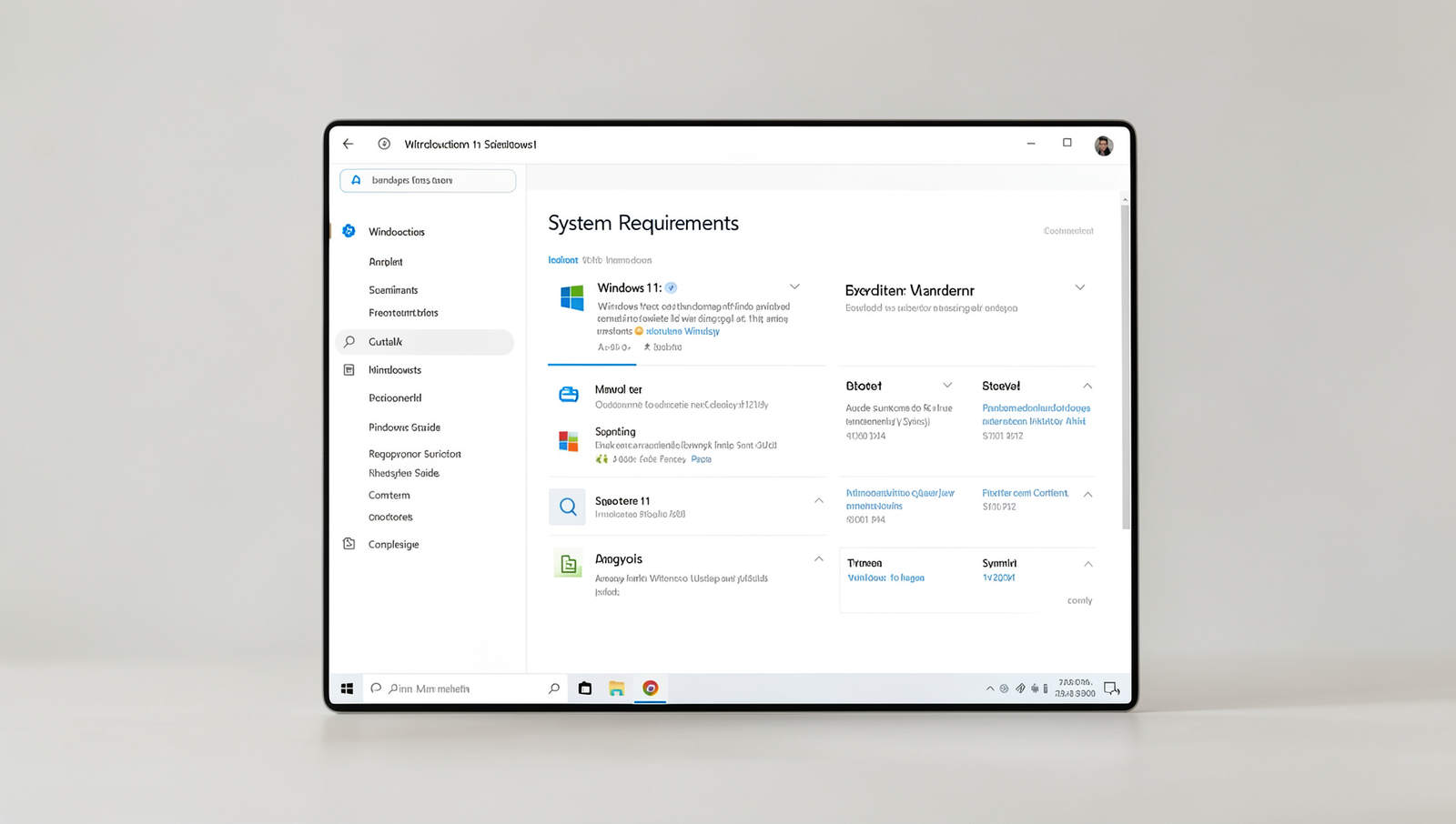
To successfully install and run Windows 11, your system must meet specific minimum requirements. These requirements ensure that the operating system functions smoothly and efficiently. Below is a detailed breakdown of the essential specifications needed for Windows 11.
- Processor: Your device must have a compatible 64-bit processor with a clock speed of at least 1 GHz and at least two cores. This means that older processors may not support Windows 11, so it’s essential to check your CPU model.
- RAM: The minimum RAM requirement for Windows 11 is 4 GB. This amount of memory is necessary to run the operating system and its applications without significant slowdowns.
- Storage: You will need a minimum of 64 GB of storage space available on your device. This space is crucial for the installation of the OS and to accommodate future updates and applications.
- Graphics: Your system’s graphics card must be DirectX 12 compatible, with a WDDM 2.x driver. This requirement ensures that you can utilize the advanced graphical features of Windows 11.
For example, if you are considering upgrading from an older version of Windows, you should first verify your processor and RAM specifications. You can check your system information by running the command
msinfo32in the Run dialog. This will help you determine if your current hardware meets the Windows 11 system requirements.
In summary, ensuring that your device meets these minimum specifications is crucial for a smooth transition to Windows 11. If your system falls short, consider upgrading your hardware to enjoy the latest features and improvements offered by this new operating system.
Recommended System Requirements
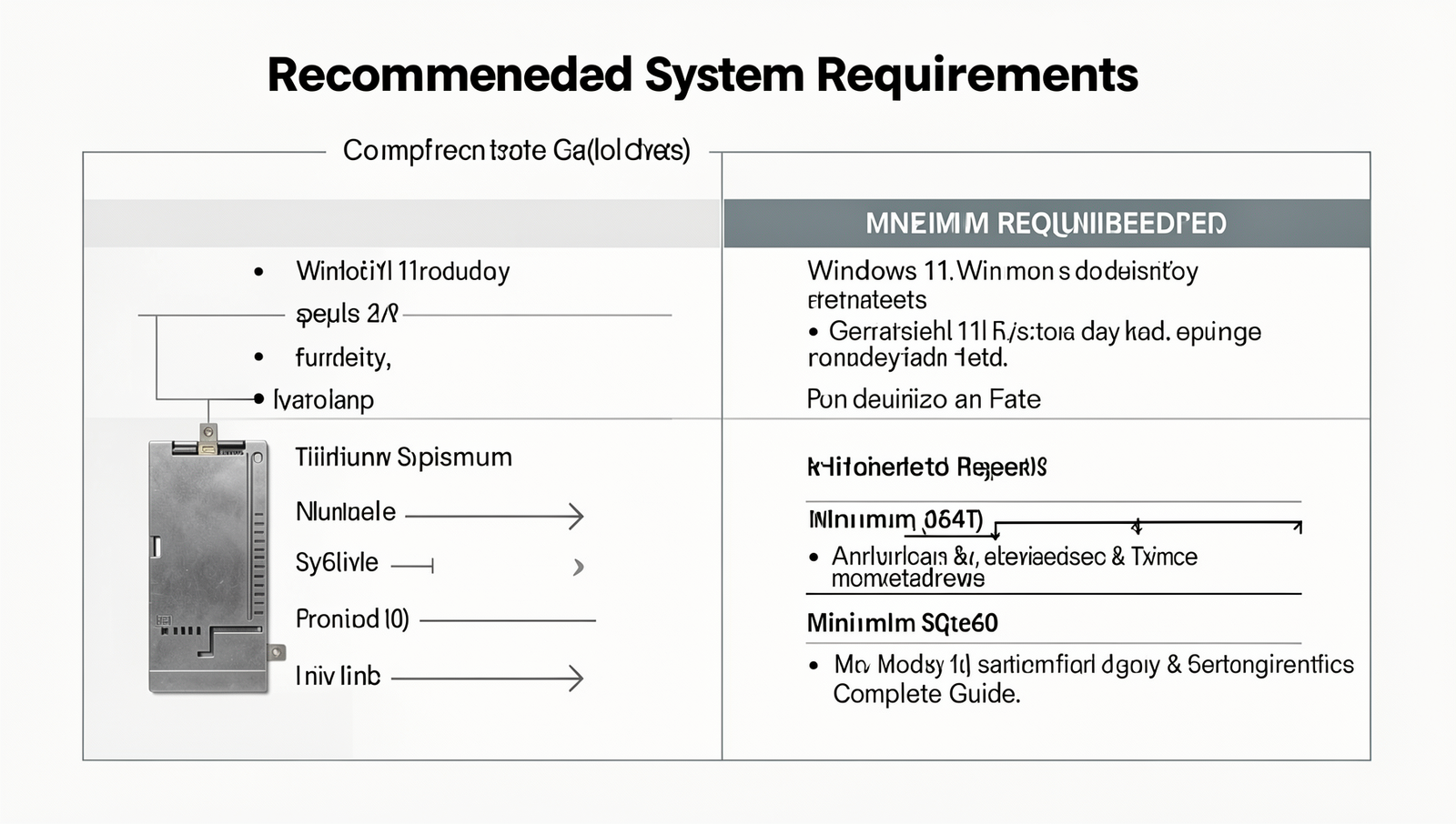
To ensure optimal performance when using Windows 11, it is essential to meet the recommended system requirements. These specifications not only enhance the user experience but also allow for better multitasking and smoother operation of applications.
First and foremost, the processor plays a crucial role in the overall performance of your system. For Windows 11, it is recommended to have a processor that operates at a speed of at least 1 GHz and has a minimum of four cores. This configuration allows for efficient processing of tasks and ensures that the operating system runs smoothly, especially when multiple applications are open.
In terms of memory, having 8 GB of RAM or more is advisable. This amount of RAM significantly improves multitasking capabilities, enabling users to switch between applications without experiencing lag. For instance, if you are working on a document while streaming music and browsing the web, 8 GB of RAM will help maintain performance without interruptions.
Storage is another critical aspect of the Windows 11 system requirements. A minimum of 128 GB SSD is recommended for smooth operation. Solid State Drives (SSDs) provide faster data access speeds compared to traditional hard drives, which translates to quicker boot times and faster loading of applications. This is particularly beneficial for gamers and professionals who rely on speed and efficiency.
Finally, for those interested in gaming or graphic-intensive applications, a dedicated graphics card is highly recommended. Look for cards that support DirectX 12, which will enhance your gaming experience and ensure compatibility with the latest titles.
Additional Features and Requirements
In addition to the basic hardware specifications, Windows 11 system requirements include several additional features that enhance security and usability. One of the most critical requirements is the presence of a Trusted Platform Module (TPM) version 2.0. This hardware-based security feature helps protect sensitive data and ensures that your device is secure from unauthorized access. TPM 2.0 is essential for features like BitLocker encryption, which safeguards your files and data.
Another important requirement is the capability for Secure Boot. This feature ensures that your PC boots using only software that is trusted by the manufacturer. Secure Boot helps protect your system from malware and other malicious software that can compromise the boot process. To enable Secure Boot, your motherboard’s firmware must support it, and it must be activated in the BIOS settings.
Windows 11 also mandates an internet connection for updates and certain features. This requirement ensures that users can receive the latest security patches and enhancements, keeping their systems up to date. Additionally, some features, such as the Microsoft Store and cloud-based services, require an active internet connection to function properly.
Lastly, a Microsoft account is necessary for accessing specific functionalities within Windows 11. While local accounts are still an option, many features, including syncing settings and accessing the Microsoft Store, are streamlined through a Microsoft account. This integration allows for a more cohesive user experience across devices.
How to Check Your PC’s Compatibility
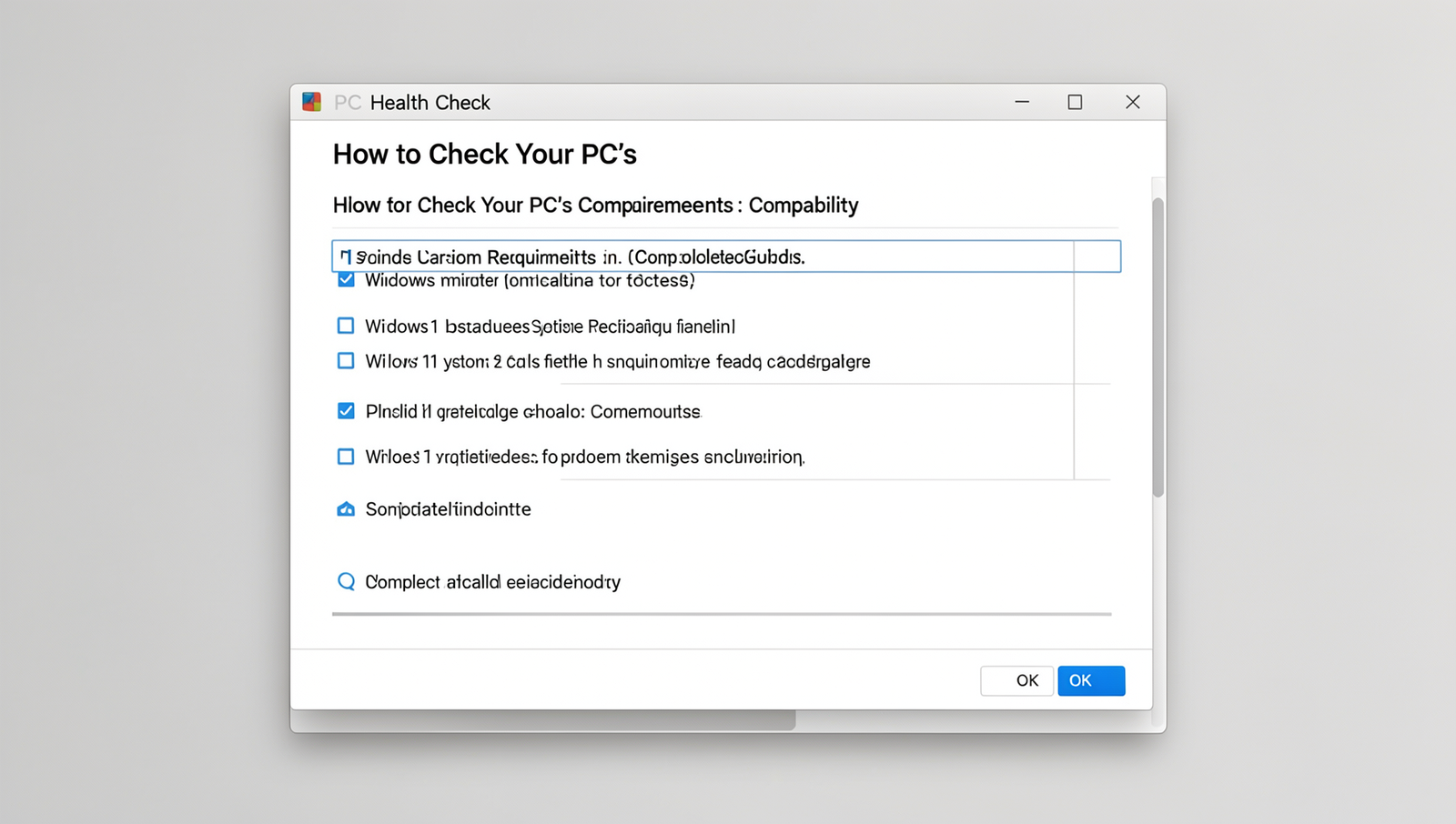
Before upgrading to Windows 11, it’s crucial to ensure that your PC meets the necessary Windows 11 system requirements. There are several methods to check your computer’s compatibility, starting with the PC Health Check tool provided by Microsoft.
The PC Health Check tool is a straightforward application that assesses your system and provides a compatibility report. To use it, follow these steps:
- Download the PC Health Check tool from the official Microsoft website.
- Install and run the application.
- Click on the “Check now” button to see if your PC is eligible for Windows 11.
If you prefer a manual approach, you can check your system specifications directly. Here’s how:
Windows + RThen type msinfo32 and press Enter. This will open the System Information window, where you can verify your CPU, RAM, and storage details.
Another important aspect to consider is your BIOS settings, particularly for TPM (Trusted Platform Module) and Secure Boot. To check these settings:
- Restart your computer and enter the BIOS setup (usually by pressing
F2,Delete, orEscduring boot). - Look for options related to TPM and Secure Boot, ensuring they are enabled.
Common compatibility issues include insufficient RAM, older processors, or lack of TPM support. If your system falls short in any area, consider upgrading components or consulting with a professional for potential solutions.
Upgrading to Windows 11: What You Need to Know
Upgrading to Windows 11 can be an exciting step, but it’s essential to ensure your system meets the Windows 11 system requirements before proceeding. Here are the steps to upgrade from Windows 10:
- Check compatibility: Use the PC Health Check tool to determine if your device is eligible for the upgrade.
- Update Windows 10: Ensure your current version of Windows 10 is up to date by navigating to
Settings > Update & Security > Windows Updateand clicking onCheck for updates. - Download Windows 11: If your device is eligible, you can download Windows 11 directly from the Windows Update section.
- Follow the installation prompts: Once downloaded, follow the on-screen instructions to complete the installation.
Before you upgrade, it’s crucial to back up your data. This can prevent data loss in case of any issues during the upgrade process. You can back up your files using the built-in Windows Backup feature or a third-party backup solution.
Potential issues during the upgrade may include hardware incompatibility, software conflicts, or insufficient disk space. To mitigate these risks, ensure your system meets all the Windows 11 system requirements, and consider disabling any non-essential applications before starting the upgrade.
After upgrading, optimize your performance by adjusting settings. Disable unnecessary startup programs by using Task Manager, and regularly check for updates to keep your system running smoothly. Additionally, consider adjusting visual effects for better performance by navigating to System Properties > Performance Settings.
Conclusion
In summary, understanding the Windows 11 system requirements is essential for anyone looking to upgrade their operating system. The minimum specifications, including a compatible 64-bit processor, 4 GB of RAM, and 64 GB of storage, ensure that users can enjoy the new features and enhanced performance that Windows 11 offers. Additionally, the requirement for TPM 2.0 and Secure Boot highlights Microsoft’s commitment to security, providing users with a safer computing environment. By meeting these requirements, users can take full advantage of the revamped interface and improved functionality.
As you consider upgrading, it’s important to evaluate your current hardware against the Windows 11 system requirements. If your device meets or exceeds these specifications, you can proceed with the installation and enjoy the benefits of a modern operating system. For those whose devices do not meet the requirements, it may be time to consider hardware upgrades or a new device to fully experience Windows 11’s capabilities.
Frequently Asked Questions
What are the minimum system requirements for Windows 11?
The minimum system requirements for Windows 11 include a compatible 64-bit processor with at least 1 GHz and 2 or more cores, 4 GB of RAM, and 64 GB of storage. Additionally, a DirectX 12 compatible graphics card is necessary.
Can I run Windows 11 on my current PC?
What is the requirement for TPM in Windows 11?
Windows 11 requires TPM version 2.0 for enhanced security features. This hardware-based security module helps protect sensitive data and ensures that the operating system runs securely, making it a crucial requirement for installation.
Is there a specific graphics card requirement for Windows 11?
Yes, Windows 11 requires a DirectX 12 compatible graphics card with a WDDM 2.0 driver. This ensures that the system can support the latest graphical features and enhancements, providing a better overall user experience.