

9 min read • 1,821 words
How to Run Python Code Online Without Installing Anything
In today’s fast-paced digital world, the ability to run Python code online without the hassle of installation is invaluable for both beginners and experienced developers. Whether you are looking to test a quick snippet, collaborate with others, or work on a larger project, web-based Integrated Development Environments (IDEs) provide a seamless solution. This article will guide you through various platforms that allow you to execute Python code directly from your browser, making coding more accessible than ever.
You will learn about popular tools such as Google Colab, which enables you to run Python code in Jupyter notebooks without any setup, and online interpreters that can execute code snippets instantly. Additionally, we will explore collaborative coding features and browser-based environments like Glitch, which are perfect for Python projects. By the end of this article, you’ll be equipped with the knowledge to start coding in Python online effortlessly.
Step-by-Step Tutorial
Step 1: Choose an Online Python Compiler
To begin running Python code online without the need for installation, the first step is to select a reliable online Python compiler. Follow these sub-steps to ensure a smooth experience:
- Visit a Trusted Platform: Open your web browser and navigate to a well-known online Python compiler. Some popular options include Replit, Google Colab, and Programiz. These platforms are user-friendly and widely used by programmers.
- Create an Account (if necessary): Depending on the platform you choose, you may need to create an account. For instance, Replit and Google Colab require you to sign up to save your projects. Follow the on-screen instructions to register.
- Access the Compiler Interface: Once you are logged in, look for an option to create a new project or file. This is usually prominently displayed on the main dashboard. Click on it to open the coding interface.
- Familiarize Yourself with the Features: Take a moment to explore the interface. Look for features such as syntax highlighting, which makes your code easier to read, and error checking, which helps you identify mistakes in real-time.
- Check for Security: Before you start coding, ensure that the website is secure. Look for HTTPS in the URL to protect your code and personal information from potential threats.
By following these steps, you will be well on your way to running Python code online efficiently and securely.
Step 2: Create a New Python File or Project
1. **Access the Online Compiler**: After navigating to the homepage of your chosen online compiler, look for a prominent button or link that says “Create New File” or “Start a New Project.” This is usually located at the top of the page or in a sidebar.
2. **Select Python as Your Language**: Once you click on the option to create a new file or project, you will typically be prompted to choose a programming language. From the list of available languages, select “Python.” This ensures that the environment is set up correctly for Python syntax and libraries.
3. **Open the Code Editor**: After selecting Python, a new code editor window should open. This is where you will write your Python code. Familiarize yourself with the layout of the editor, as it may include features such as syntax highlighting, line numbering, and auto-completion.
4. **Name Your Project**: It is a good practice to give your project a descriptive name. This helps you easily identify it later, especially if you plan to create multiple projects. Look for a field labeled “Project Name” or “File Name” and enter a meaningful title.
5. **Explore Templates or Examples**: Many online compilers offer templates or example projects that can serve as a starting point. Take a moment to explore these options, as they can provide valuable insights into how to structure your code.
**Tip**: Be aware that some platforms may require you to sign up or log in to save your work. Make sure to check the platform’s requirements to avoid losing your progress.
Step 3: Write Your Python Code
1. **Access the Code Editor**: Once you have chosen your online Python interpreter, navigate to the code editor section. This is where you will write or paste your Python code. The interface is usually user-friendly, allowing for easy text entry.
2. **Type or Paste Your Code**: Begin by typing your Python code directly into the editor. If you have existing code, you can paste it into the editor. Ensure that your code is formatted correctly. For example, if you are writing a simple “Hello, World!” program, you would enter:
print("Hello, World!")3. **Check for Syntax Errors**: After entering your code, look for any syntax errors highlighted by the editor. Most online platforms will underline or mark errors in red. If you see any errors, review your code carefully to correct them.
4. **Use Functions for Organization**: If your code is complex, consider breaking it down into smaller functions. This practice not only makes your code easier to read but also simplifies debugging. For instance:
def greet(name):
       print(f"Hello, {name}!")
   greet("Alice")
5. **Add Comments**: To enhance the readability of your code, use comments to explain what each part does. Comments are crucial for future reference, especially if you revisit your code later. You can add a comment like this:
# This function greets the user6. **Avoid Unsupported Libraries**: Be cautious not to use libraries that may not be supported by the online platform. Check the documentation of the interpreter to ensure compatibility.
Step 4: Run Your Python Code
1. **Locate the ‘Run’ Button**: Once you have entered your Python code into the online compiler, look for a button labeled ‘Run’, ‘Execute’, or something similar. This button is typically located at the top or bottom of the code editor interface.
2. **Click the ‘Run’ Button**: After confirming that your code is free of syntax errors, click the ‘Run’ button. This action will initiate the execution of your Python code.
3. **View the Output**: Once the code is executed, the output will usually be displayed in a designated output area, often located below or beside the code editor. This area is where you will see the results of your code execution, including any print statements or return values.
4. **Test with Different Inputs**: To ensure that your code behaves as expected, consider testing it with various inputs. Modify the input values in your code and click the ‘Run’ button again to observe how the output changes. This practice can help you identify any logical errors or edge cases in your code.
5. **Use Print Statements for Debugging**: If your code is not producing the expected results, incorporate print statements at strategic points in your code. This will allow you to track the flow of execution and understand how data is being manipulated.
6. **Be Aware of Execution Time Limits**: Many online compilers impose execution time limits. If your code takes too long to run, it may be terminated automatically. Keep your code efficient to avoid this issue.
Step 5: Save and Share Your Code
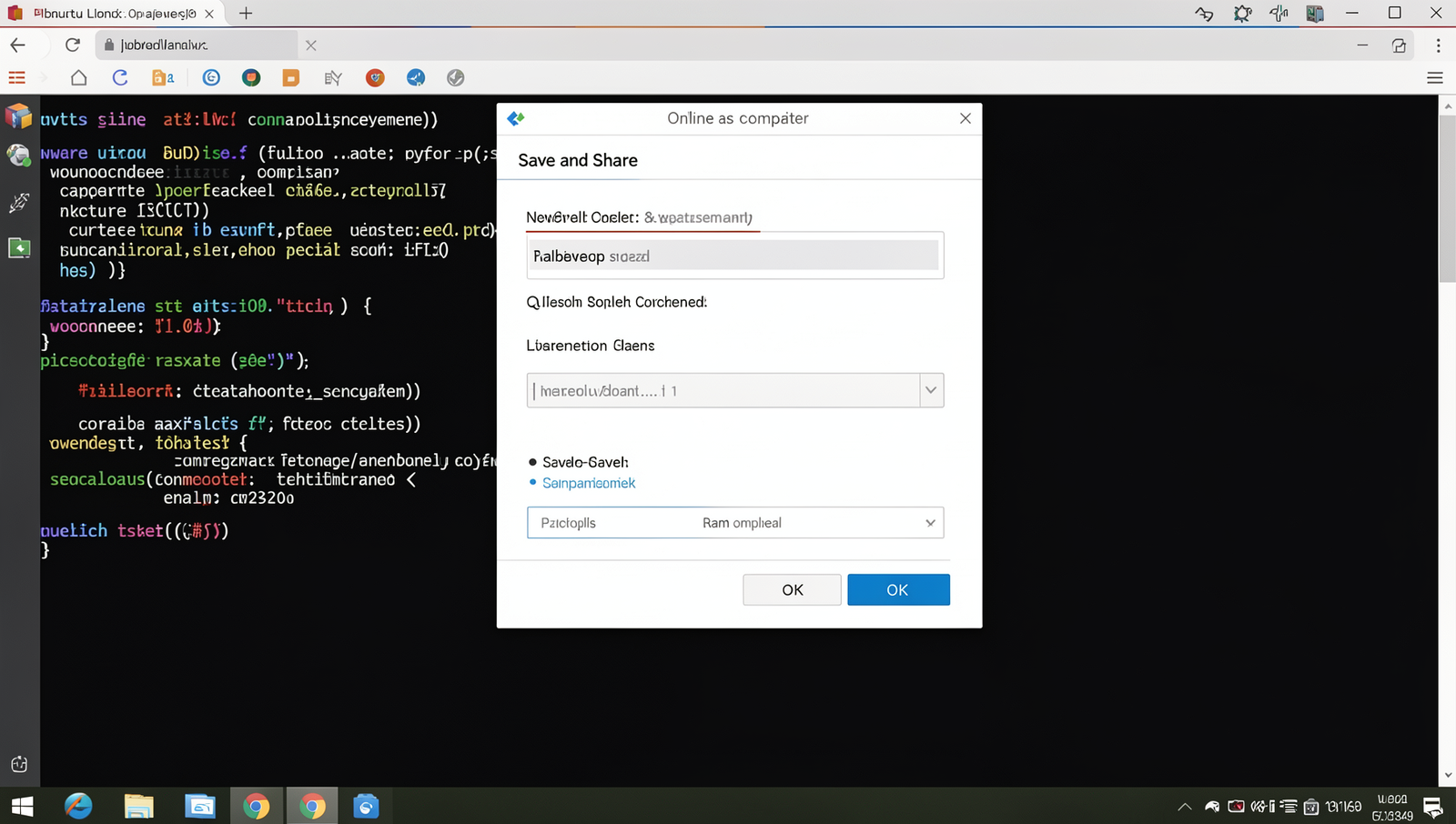
1. **Locate the Save Option**: After you have successfully run your Python code, look for a ‘Save’ button or option in the online platform you are using. This is typically found in the toolbar at the top of the interface. If you cannot find it, check the menus or help section for guidance.
2. **Choose a File Format**: When you click the ‘Save’ option, you may be prompted to choose a file format. Common formats include .py for Python scripts or .txt for plain text files. Select the format that best suits your needs.
3. **Name Your File**: You will likely be asked to provide a name for your file. Choose a descriptive name that reflects the purpose of your code. This will make it easier to identify later.
4. **Confirm the Save**: After naming your file, confirm the save action. You should receive a notification or message indicating that your code has been saved successfully.
5. **Sharing Your Code**: If the platform offers a sharing feature, look for a ‘Share’ button. Clicking this will usually provide you with a link that you can copy and send to others. This allows your peers to view or collaborate on your code.
6. **Utilize Version Control**: If the platform supports version control, consider using it to track changes in your code. This can be invaluable for collaborative projects or when you want to revert to an earlier version.
**Tips**: Always save your work frequently to prevent losing it due to session timeouts. Regular saving ensures that your progress is not lost unexpectedly.
Conclusion
In summary, running Python code online without the need for installation offers numerous advantages, especially for beginners and those looking to experiment with code quickly. Online platforms provide an accessible environment where users can write, test, and share their Python scripts seamlessly. This eliminates the hassle of setting up a local development environment, allowing users to focus on learning and coding. Additionally, many of these platforms come equipped with helpful features such as syntax highlighting, debugging tools, and collaborative options, enhancing the overall coding experience.
As you explore the various online tools available, consider your specific needs and preferences. Whether you are looking for a simple interface or advanced features, there is a suitable platform for everyone. Start by trying out a few of these online compilers and interpreters to find the one that best fits your workflow. Embrace the convenience of being able to run Python code online and take your programming skills to the next level.
Frequently Asked Questions
What are online Python interpreters?
Online Python interpreters are web-based platforms that allow users to write, execute, and test Python code directly in their browsers. They eliminate the need for local installations, making it easy to run Python scripts from anywhere with internet access.
How do I use an online Python interpreter?
To use an online Python interpreter, simply visit a website that offers this service. You can write your Python code in the provided text area and then click the “Run” button to execute it. The output will be displayed immediately on the same page.
Are there any limitations to online Python interpreters?
Yes, online Python interpreters may have limitations such as restricted execution time, limited access to libraries, and constraints on file handling. These restrictions can affect the complexity of the programs you can run compared to a local environment.
Can I save my code when using online interpreters?
Many online interpreters offer options to save your code, either by creating an account or using temporary links. However, not all platforms provide this feature, so it’s important to check the specific capabilities of the interpreter you are using.